You open an app to do one small thing. Check a booking. Read a message. Look up an order. Then the password box appears, and suddenly your quick task has become a guessing game.
Was that the password with the number at the end? Did you change it last month? And why does the reset email always arrive after you have already requested another one?
Passkeys offer a different way to sign in to supported accounts. They can make that everyday routine simpler, but the name leaves plenty of people wondering what they are actually agreeing to.
Here is a practical guide to what passkeys do, where they live, and how to try them without turning account recovery into tomorrow’s problem.
Official documentation checked October 16, 2026. Features and setup screens vary by service, device, and credential manager. Images are AI-generated conceptual illustrations, not screenshots of real security settings.
What are passkeys, in plain English?
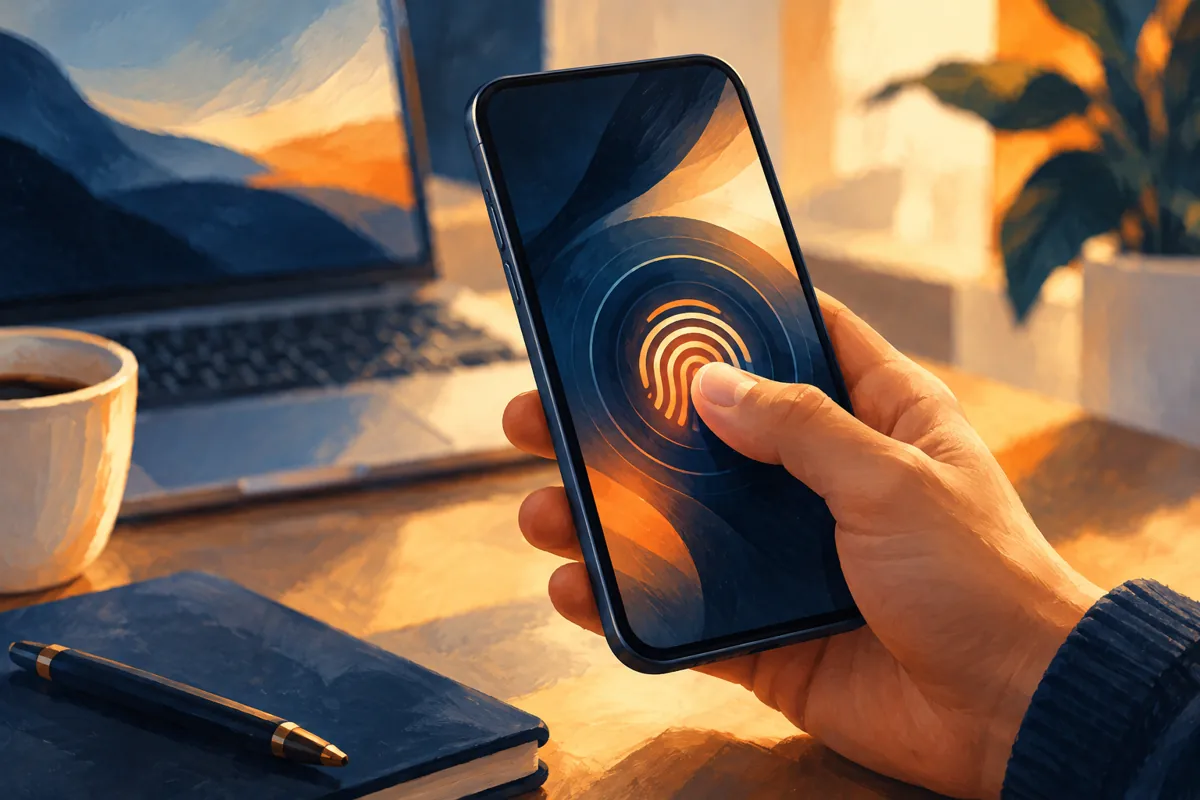
A passkey is a digital sign-in credential. Instead of typing a website password, you approve access using a supported device’s unlock method, such as a fingerprint, face recognition, or PIN. The FIDO Alliance’s explanation describes passkeys as a password replacement built on cryptographic keys.
You do not invent the passkey, memorize it, or type it into a website. Your device or credential manager handles that part.
Think of it as changing the task from “remember the secret for this account” to “use the credential you have and authorize its use.” That is a simplified description, but it gets closer to the experience you will actually notice.
Our suggestion is to learn the process with one account before deciding how widely you want to use it. There is no prize for changing every login before lunch.
Is the fingerprint itself my passkey?

No. The fingerprint or face check authorizes your device to use the credential; it is not the credential sent to the website.
Apple’s security explanation describes a pair of keys: the service stores a public key, while the private key is used to prove you can sign in without revealing it to the service. Local unlock methods authorize that operation.
FIDO also explains that biometric processing stays on the device. A website does not receive your fingerprint image as part of this sign-in.
That distinction matters when a prompt appears. You are approving a sign-in, not uploading your face to every store where you have an account. Still, read the account name and service shown before confirming anything.
Why are passkeys useful?
For everyday use, the obvious benefit is fewer passwords to type and remember. There is also a security benefit: passkeys are designed to resist phishing, the trick of getting someone to enter a credential into a convincing imitation of a real site.
Apple’s passkey overview explains that the credential is tied to the app or website it was created for. A lookalike page cannot simply reuse that credential for the legitimate service.
That does not make every online interaction safe. A passkey cannot tell you whether a seller will deliver, whether an attachment is sensible to open, or whether someone is pressuring you into a bad decision. It improves the sign-in step.
Keep that boundary clear. Useful technology gets easier to trust when you understand exactly what it helps with.
Where does a passkey live?

This is the question to answer before pressing “Create.”
FIDO distinguishes between synced passkeys, managed across devices through a provider, and device-bound passkeys that stay with a particular device, including supported hardware security keys. A credential manager might be built into your operating system or supplied by another provider.
On Apple devices, Apple’s iPhone guide describes saving supported passkeys in iCloud Keychain and finding them in the Passwords app. Its instructions also explain signing in on another device using a passkey held on your iPhone.
Do not assume every device you own will automatically have every credential. Check which provider saved it, which account you are signed into, and what that provider supports.
A useful note for yourself is the account name and where its passkey is stored. You are recording an inventory, not a password or recovery code. Keep sensitive recovery information separately and securely.
A simple way to try your first passkey
Use a personal device you control. Start with a service you already use and whose recovery process you understand.
- Open the real service directly. Use its official app or your own bookmark.
- Review account recovery. Make sure the recovery details and backup methods offered by that service are current.
- Find the passkey setting. Look in the account’s security or sign-in section and follow its own instructions.
- Read the storage prompt. Notice which device or credential manager will hold the passkey.
- Try another sign-in. Keep your existing working session available while you confirm the new method behaves as expected.
For a concrete example, Google’s account guide explains its passkey requirements and setup. Google says adding a passkey does not remove existing authentication or recovery factors. It also warns against creating a passkey on a shared device.
Follow the documentation for your own account rather than assuming Google’s behavior applies everywhere. Workplace accounts may also have administrator rules.
What if I lose my phone or change devices?
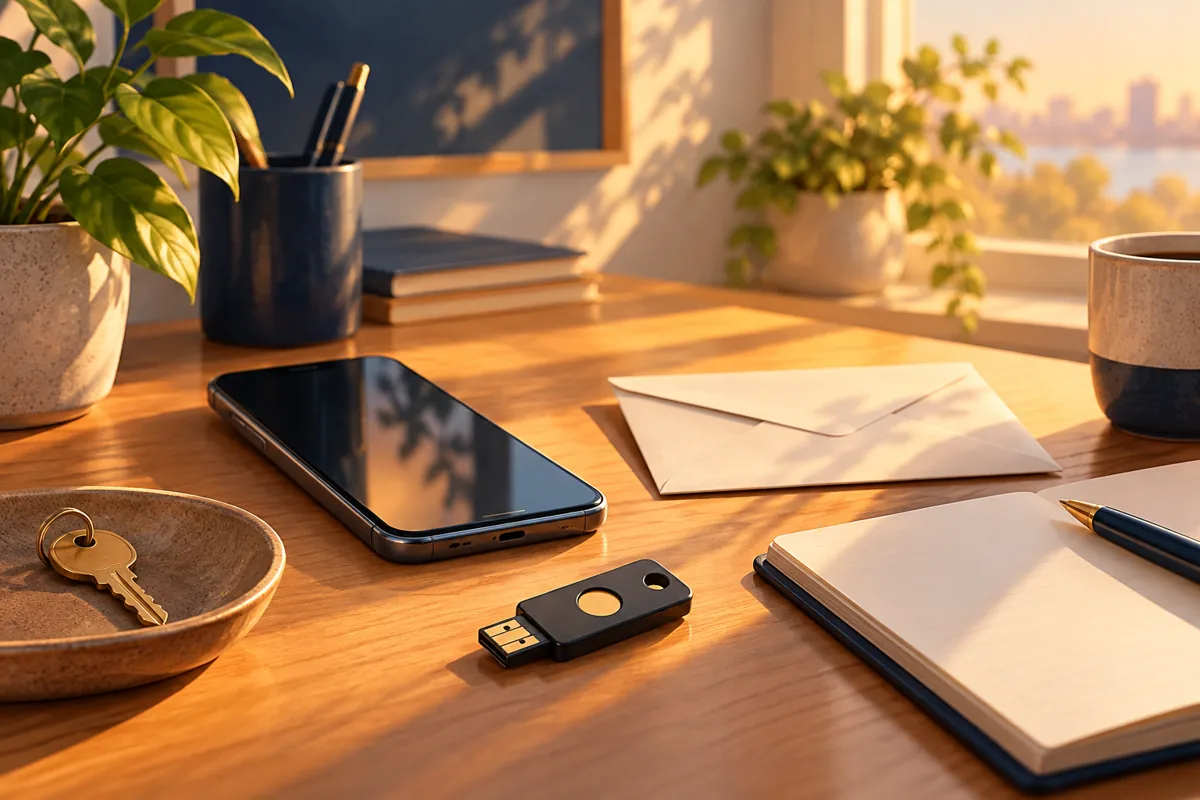
Plan for that before the old phone disappears into a trade-in box.
Synced passkeys can become available through their provider on another supported device. A device-bound credential has different limits. Recovery depends on the provider and the service involved, so losing a phone does not have one universal answer.
Apple documents recovery protections for iCloud Keychain, but those protections still depend on meeting its recovery requirements. Treat the account that manages your credentials as something worth maintaining carefully.
Before replacing a device, make a short checklist: Can you access the credential manager on the replacement? Can you sign in to the accounts that matter? Do you have the backup methods those services recommend?
Test those things while the old device still works. Getting organized on a calm afternoon is considerably easier than doing it while wondering whether a missing phone is on the bus.
Do I still need my passwords and other security settings?
That depends on the account. Some services allow passwords and passkeys together. Others offer different passwordless arrangements. Read what your service actually changes.
Do not delete working credentials or disable existing protections simply because a new sign-in method worked once. First understand the remaining sign-in and recovery options.
If a device is lost or a credential was saved somewhere inappropriate, use the service’s official account controls to review access. Google’s help page includes instructions for removing passkeys; other services have their own procedures.
Our practical recommendation is to make one deliberate change, verify it, and keep a clear record of how you get back in. Less confusion is part of better security, too.
Try one account, then decide
You do not need to become a security specialist to understand the next passkey prompt. Know what account it belongs to, where the credential will be saved, and what happens if your device is unavailable.
If those answers are clear, try it on one supported account. If they are not, take a moment to read the service’s instructions first.
The point is a smoother everyday routine: less guessing, fewer interruptions, and a sign-in process you understand.
For more practical technology habits, read our simple phone notification reset and guide to finding forgotten subscriptions. Explore more in Technology & AI.