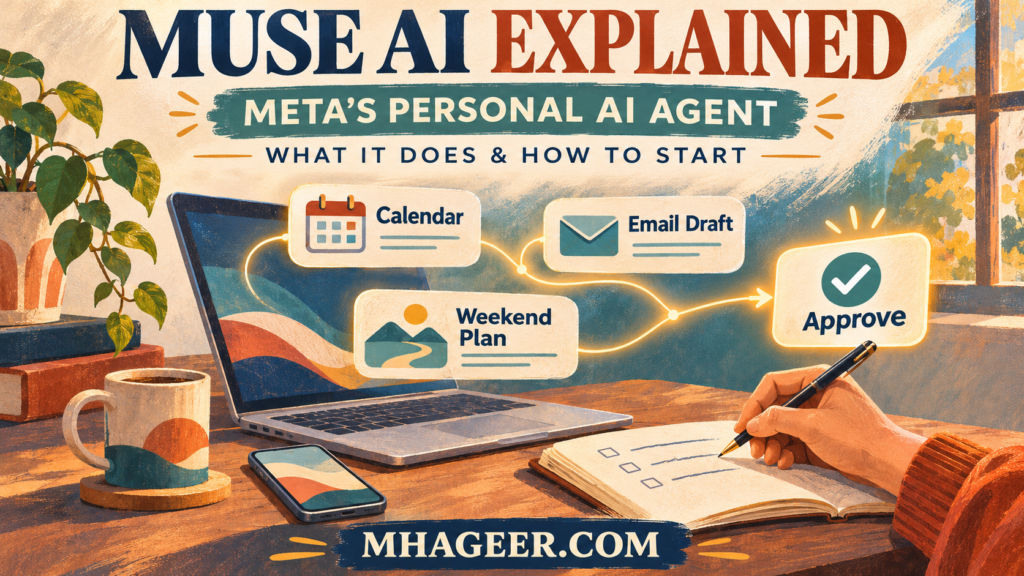
Muse AI is a name you may see when looking for help with everyday tasks. This guide covers Muse from Meta, the personal AI agent currently presented at muse.ai. Its appeal is practical: give it a clear job, let it work through the steps, and review what it produces.
For Mhageer readers, that might mean comparing a few weekend plans, organizing a busy week, or preparing a message. The useful question is whether it can complete your specific task accurately with an amount of access you are comfortable granting.
Details checked November 21, 2026, against Meta’s official product and help pages. This is a researched explainer. The starter prompts are original suggested tests; we have not run them in Muse. All artwork is original AI-assisted conceptual illustration.
What is Muse AI from Meta?

Meta describes Muse as a personal agent that can use a browser and connected services to work on tasks. According to its launch announcement, Muse can continue longer jobs after you close the app and return when it needs approval or has an update. Examples include handling email, researching purchases, and planning travel.
The official Muse site describes a dedicated cloud computer with a browser, plus connections to services such as email, calendars, and Instagram. Actual capabilities depend on what is available to your account, the permissions you grant, and the services involved.
That makes the brief you give it important. Define what a finished result should contain, which information it can use, and where it should stop for your review.
What can you try first?
| Starter task | Ask for | Check yourself |
|---|---|---|
| Compare outing ideas | A sourced shortlist with hours, costs, and a weather backup | Official venue information for your date |
| Organize a task list | A realistic order and a list of missing details | Deadlines, travel time, and your priorities |
| Prepare a message | A draft for you to review | Names, dates, tone, and factual claims |
These are starter exercises chosen by Mhageer, rather than promises about results. Begin with a task whose answer you can check easily. Then judge how much useful work remains after your review.
Three Muse AI prompts to copy and adapt
1. Compare a low-key afternoon near Kennesaw

Compare three relaxed afternoon outings near Kennesaw for two adults on [date]. We want a short walk, a coffee stop, and a total activity-and-food budget of [amount]. Use current official sources for opening hours and admission. Show likely extra costs and one rainy-day alternative. List anything you cannot verify. Research only; do not book, buy, or contact anyone.
First, replace the brackets with your own details. Afterward, open the sources and check that the information applies to your day. A specific date helps expose closed-day problems and seasonal assumptions.
You can compare the result with our Marietta Square walking guide or two-day getaways near Kennesaw if you decide to extend the break.
2. Turn a loose task list into a workable plan
Organize this sample list into a realistic Saturday plan: return a library book, buy groceries, collect a parcel, and spend one hour on household paperwork. Ask me for any opening hours, deadlines, or travel details you need. Separate fixed commitments from flexible tasks. Give me a draft schedule in this chat without changing a calendar or creating reminders.
This exercise tests whether the agent notices missing information. If it confidently assigns a collection time without knowing when the parcel counter opens, ask it to revise the plan. A neat table still needs sound assumptions.
3. Prepare an email for your review

Draft a friendly email asking an event organizer whether tickets are needed for children and whether stroller access is available. Use placeholders for the event name and date. Keep it under 120 words. Do not invent attendance details or send anything. Show me the draft and list what I need to fill in.
For this first test, a made-up situation is enough. Review whether the draft asks both questions clearly and leaves unknown details as placeholders. Once you understand the workflow, decide whether connecting a real service would help.
How to get started with Muse AI
Meta’s getting-started guide explains that you can use a Meta account in the app or on the web. It describes chat, reminders, side chats, and working with files. Availability can vary, including for voice features.
- Start from the official Muse website and check the options available to your account.
- Choose one small task and describe the result you want.
- Supply the relevant context and specify a format, such as a comparison table.
- Review the response, ask for corrections, and check the sources.
- Connect an additional service only when it serves a clear purpose.
For reminders, include the date, time, and time zone. Then inspect the confirmation rather than assuming the schedule is right.
Muse AI pricing and availability
Meta’s subscription information currently lists these options. Benefits and availability can vary by account and region, so check the offer shown to you before subscribing.
| Option | Listed monthly price | What to know |
|---|---|---|
| Free access | Free, with usage limits | You can wait for the allowance to refresh after reaching a limit. |
| Power | $20 | Higher weekly usage allowance than free access. |
| Maximum | $100 | Higher allowance than Power. |
Meta says subscriptions renew monthly unless canceled, and the service is not available in every location. Our suggestion is to use a repeatable task to judge the free experience first. More allowance is useful when it supports work you actually want to delegate.
Permissions and privacy deserve a closer look

Meta’s guidance and approval help page distinguishes reading information from changing it. Checking a calendar and creating an event are different permissions. The same page explains the Permissions settings and Activity log.
Review the scope of an approval. Permission for one action differs from ongoing permission for a site or connector. Also, some actions, including sending an email, cannot simply be undone. Meta advises starting with low-risk tasks and monitoring what Muse does.
In its security explanation, Meta describes isolation, protected credentials, and a separate Sentinel permission system. Those are the company’s stated safeguards. The same document acknowledges that Muse can make mistakes and that prompt injection remains a problem.
That document also says interactions can be used for model training after sanitization, with an opt-out setting. Review the current controls for your account. Cloud-computer isolation alone does not establish that the provider can never access your information.
How to decide whether Muse AI is useful for you
Choose one recurring job and evaluate it for a week. Record the task, the result, the corrections you made, and whether the output saved you effort. That creates a more useful comparison than counting impressive features.
- Accuracy: Did the dates, sources, and details check out?
- Judgment: Did it ask about important gaps?
- Control: Did its actions match your instructions and permissions?
- Effort: Was reviewing the work easier than doing the task yourself?
For more practical AI examples, see our worked AI meal-plan guide and AI shopping-check exercises. Start with a clear task, review the result, and expand the workflow when it proves useful.