You pick up your phone to check the weather. A shopping alert is waiting. Someone liked something. A game wants you back. Before you get to the forecast, you have opened three apps you never meant to open.
Sound familiar?
The useful things on your phone can share a screen with a lot of things that simply want your attention. A delivery update and a weekend sale might arrive with the same little buzz. That does not mean they deserve the same place in your day.
You can make the phone quieter without giving up the parts you depend on. Start with a few apps, keep the important exceptions, and test the result before making bigger changes.
Start with the alerts you dismiss without reading
Look through the notifications you have received recently. Which ones did you swipe away immediately?
Those are good candidates for a closer look. Maybe it is a shopping app announcing another offer. Maybe it is a social app suggesting people to follow. Maybe you installed something for one trip and never thought about it again.
Pick three apps to review first. Three is enough to make a useful start without turning a small cleanup into an afternoon project.
For each alert, ask: Would waiting until I open this app cause a real problem? If the answer is no, it probably does not need to interrupt you immediately.
Give notifications three different jobs

Instead of switching everything off, sort alerts by what you actually need from them.
| Group | Examples to consider | What to do |
|---|---|---|
| Needs attention soon | Calls you need to receive, a pickup message, an appointment reminder | Keep the relevant alerts available |
| Useful when you check | Group-chat updates, reading recommendations, nonurgent app activity | Consider silent delivery or a scheduled check |
| No longer useful | Repeated promotions, game nudges, recommendations you always dismiss | Turn off that notification type where possible |
These are examples, not rules for every household. A school message might need your attention quickly. A work app might be essential during an on-call shift and unnecessary afterward.
Think about the alert’s purpose before changing it. One app can send both something useful and something you would happily never see again.
On iPhone: review one app at a time
Open Settings → Notifications, then select the app you want to review. Apple provides controls for allowing notifications and, where supported, their sounds, badges, and where they appear.
A badge is the little count on an app icon. A banner is the notification that appears across the screen. You might want a message available in Notification Center without also wanting a sound and a badge drawing you back to the app.
For nonurgent apps, look at Settings → Notifications → Scheduled Summary. You can choose included apps and set delivery times. Use it for updates that can wait, rather than messages you need promptly.
Scheduled Summary groups notifications for later delivery. It is different from Apple Intelligence’s text summaries; you do not need to set up an AI feature just to start reviewing your alerts.
Options vary by app and software version. Apple’s notification guide explains the available controls.
On Android: check the notification category
On many Android phones, start with Settings → Notifications → App notifications, then choose an app. You can also touch and hold a notification and open its settings. The labels and available options vary by phone manufacturer and Android version.
Where an app offers notification categories, review those before disabling the whole app. You may be able to keep a useful type of update while switching off a promotional one.
Some Android devices also let you choose Alerting or Silent for a notification type. Silent notifications remain available in the notification shade without making a sound or vibrating.
If the phone’s controls are too broad, look inside the app’s own settings. Some apps provide additional choices there.
Use Google’s Android notification guide as a starting point, and your manufacturer’s instructions if the menus look different.
Set up one quiet period you will actually use

You do not need a complicated schedule. Choose one situation where interruptions regularly get in the way: dinner, reading, a work session, or the time before bed.
On iPhone, review Settings → Focus. On Android, look for Modes or Do Not Disturb; the location varies by device. Review the people and apps allowed to interrupt you before enabling the mode.
Keep your first experiment short. Try it while you are available to check the result, rather than first using it during an important shift or overnight responsibility.
Google’s Modes and Do Not Disturb guide covers filters for people, apps, alarms, and other interruptions. Apple’s Focus guide explains its setup options.
Keep the important exceptions—and test them
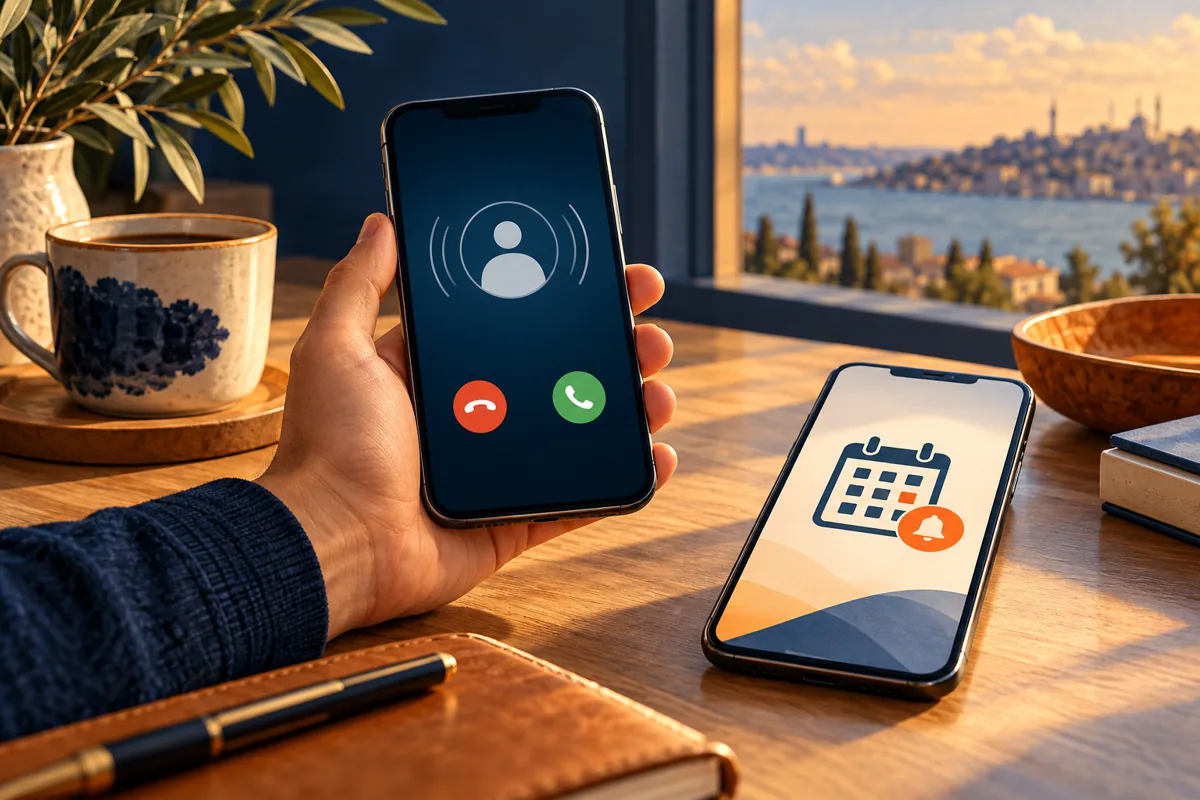
Before you call the cleanup finished, think through what you need to receive. That might include family calls, caregiving messages, work responsibilities, appointment reminders, or security alerts.
Avoid changing emergency or government-alert settings as part of a general notification cleanup. Review any app you rely on for urgent information individually.
Then test your setup. Ask someone you have allowed through to call or message while your quiet mode is active. Check a sample calendar reminder and alarm if you rely on them. Look for missed notifications afterward.
No setting can guarantee that every urgent message will reach you. Coverage, app permissions, device behavior, and the sender’s method still matter. Testing helps you catch a mistaken setting before you depend on it.
Give yourself a time to catch up

A quieter phone works better when you know when you will check it.
Pick a natural pause, such as after lunch or when you finish a task. Read the updates you chose to delay, answer what needs an answer, and leave the rest.
If you find yourself checking constantly because you are worried about missing something, review the exceptions. Maybe an important person or app needs a different setting. The setup should fit your life, including the people who depend on you.
Try this small reset today
- Review three apps whose alerts you usually dismiss.
- Turn off one unnecessary notification type.
- Make one useful-but-nonurgent update quieter, if your phone supports it.
- Review the exceptions for one Focus or Do Not Disturb mode.
- Test the important calls, messages, and reminders you expect to receive.
After a day or two, ask what became easier and what you missed. Adjust from there. You can restore an alert if it turns out to be more useful than you thought.
The goal is simple: when your phone asks for your attention, you want a better chance that the interruption was worth it.
More from Mhageer: Find and Cancel Forgotten Subscriptions · The One-Stop Weekend: Why One Good Outing Is Enough
Settings guidance checked October 13, 2026 against Apple and Google support documentation. Menu names and features vary by device, app, and software version. The accompanying pictures are AI-generated editorial illustrations, not screenshots or step-by-step interface instructions.


One response to “Your Phone Doesn’t Need to Interrupt Everything: A Simple Notification Reset”
[…] more practical technology habits, read our simple phone notification reset and guide to finding forgotten subscriptions. Explore more in Technology & […]